How to Connect Google Health to The FitCorp App
Step-by-step guide to connecting your Google Health Connect data to The FitCorp app. Takes approximately 3-5 minutes. Once connected, activity data syncs automatically in the background.
Before You Start
Make sure you have the following ready:
- The FitCorp app downloaded and installed
- Your Google account ready
- Health Connect app with activity data recorded
- Stable internet connection
For a seamless user experience and activity tracking, The FitCorp application supports integration with your Google Health account. You can control the data you share with The FitCorp and all data is governed by our Privacy & Policy. Once connected, the app syncs your activity in the background. No manual entry needed.
Please follow these instructions to connect your Google Health account to The FitCorp after your download and setup your account.
Open Profile Settings
- •Click on the gear icon in the top right corner to access your profile settings
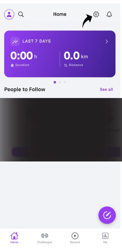
Expected result: You see your profile settings screen with various options.
Access Health Connect
- •Click on Health Connect to configure your health data settings
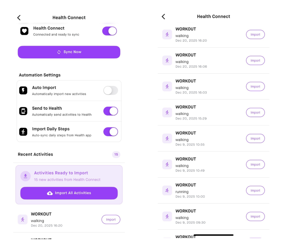
Expected result: You see the Health Connect configuration screen with sync options.
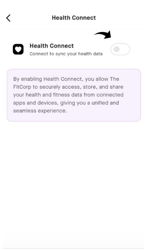
Enable Health Connect
- •Toggle the Health Connect switch ON to enable syncing and configure permissions
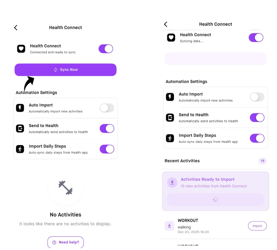
Expected result: The Health Connect section expands to show additional configuration options.
Grant Permissions
- •Click on Grant Permissions to configure the relevant permissions and access to your health data
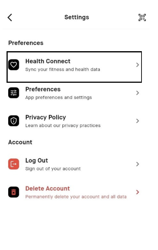
Expected result: You are taken to the Google Health permission screen.
Provide Health Data Permissions
- •Provide the appropriate permissions
- •You are encouraged to Turn On All to provide full access and take advantage of all The FitCorp features
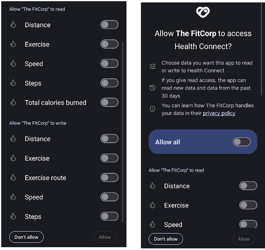
Expected result: You see a list of health data types with permission toggles.
Configure Auto Sync
- •Click on "Sync Now" to start importing your activity details for the last 30 days
- •Turn on "Auto Import" to import your activities automatically
- •Turn on "Send to Health" to send activities to Health
Expected result: The sync begins and you see a progress indicator.
Verify Imported Activities
- •You should see a list of your recent activities being imported
- •If you want to remove any, you can delete from your home screen
- •The FitCorp imports activities from the last thirty days

Expected result: You see your imported activities listed on the screen.
Who Can Connect Google Health?
All FitCorp Users
Any FitCorp user can connect their Google Health data to the app.
What Data Can Be Synced
Benefits of Connecting
Automatic Background Syncing
Your health data syncs automatically without any manual effort
30 Days Historical Data
Import up to 30 days of past activity data when you first connect
Seamless Tracking
Track all your fitness activities in one place effortlessly
Enhanced Challenge Analytics
Get better insights and analytics for your fitness challenges
Real-Time Updates
Your activity data updates in real-time as you work out
No Manual Entry
Eliminate the need to manually log your workouts and activities
Troubleshooting
Trouble connecting Google Health Connect
- Make sure you have granted all required permissions in Health Connect
- Ensure Health Connect is toggled ON in your FitCorp settings
- Check that your Android device is running the latest version
- Restart the FitCorp app and try again
- Verify your Google account is signed in on your device
Activities not syncing automatically
- Check that "Auto Import" is turned ON in your Health Connect settings
- Ensure you have a stable internet connection
- Verify that background app refresh is enabled for FitCorp
- Try tapping "Sync Now" to manually trigger a sync
- Restart the app and check again
Don't see recent activities
- The app only imports the last 30 days of activities
- Tap "Sync Now" to refresh your data
- Check that you granted permission for the specific activity types
- Verify the activities are recorded in your Health app
- Try disconnecting and reconnecting your Health Connect
Health Connect permissions not working
- Open your device Settings > Health > Permissions
- Ensure FitCorp has access to all required data types
- Try revoking all permissions and granting them again
- Restart your device after changing permissions
- Make sure the Health app is properly installed
Data discrepancy between Health app and FitCorp
- FitCorp imports data from your Health app — any discrepancies exist there first
- Sync manually to get the latest data
- Check if activities were recorded in the correct time frame
- Some data types may have different tracking methods
- Contact support if discrepancies persist
Disconnecting Google Health
If you need to disconnect Google Health from The FitCorp app:
- 1Go to Settings > Health > FitCorp on your Android device
- 2Tap "Turn Off All" or select specific data types to remove
- 3Confirm your selection
- 4Alternatively, toggle Health Connect OFF in the FitCorp app settings
Quick Reference
| Step | Action | Time |
|---|---|---|
| 1 | Open profile settings | 10 seconds |
| 2 | Access Health Connect | 5 seconds |
| 3 | Enable Health Connect | 5 seconds |
| 4 | Grant Permissions | 30 seconds |
| 5 | Configure permissions | 30 seconds |
| 6 | Sync activities | 1-2 minutes |
| 7 | Verify imported data | 30 seconds |
| Total | Complete Android setup | ~3-5 minutes |
Pro Tips
For Better Accuracy:
- 1Wear your device consistently - Wear your device consistently during workouts for best results
- 2Calibrate your devices - Calibrate your health tracking devices regularly
- 3Allow background refresh - Allow background app refresh for automatic syncing
For Complete Data:
- 1Turn on ALL permissions - Turn on ALL permissions for full FitCorp feature access
- 2Enable Auto Import - Enable "Auto Import" to avoid manual syncing
- 3Sync regularly - Sync regularly if you disable background refresh
For Seamless Experience:
- 1Keep your Health app updated - Keep your Health app updated for the best integration
- 2Stay connected - Maintain a stable internet connection for real-time syncing
- 3Review weekly - Review synced activities weekly for accuracy
Need More Help?
If you encounter any issues not covered in this guide:
- •FAQ Section: Check the help center for common questions
- •Video Tutorials: Visit our YouTube channel for visual guides
- •Contact Support: Reach out to our support team at support@thefitcorp.com
Welcome to The FitCorp!
You're now ready to seamlessly sync your Google Health data and maximize your fitness tracking experience. Enjoy automatic activity syncing and make the most of every workout!