Privacy and Profile Settings
Take full control of your privacy in The FitCorp app. This guide covers profile visibility, activity privacy, hidden details, and how different privacy combinations work together.
Before You Start
Make sure you have the following ready:
- The FitCorp app installed and updated to the latest version
- Signed in to your FitCorp account
- A member of at least one tenant
Access Your Profile Settings
- •Open The FitCorp app on your device
- •Tap on the Profile icon in the bottom navigation bar
- •Tap the Settings gear icon in the top-right corner
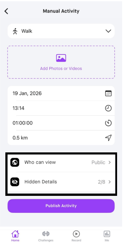
Expected result: You'll see your profile settings page with various configuration options.
Navigate to Privacy Settings
- •In the settings page, scroll down to the Privacy section
- •Tap on Privacy Settings to expand the options
- •You'll see three main categories: Profile Privacy, Activity Privacy, and Hidden Details
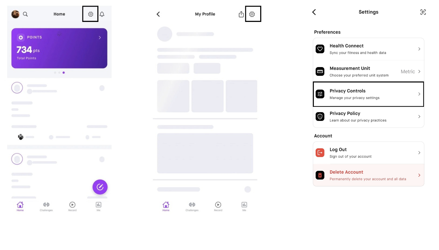
Expected result: You can see the three main privacy categories available for configuration.
Configure Profile Privacy
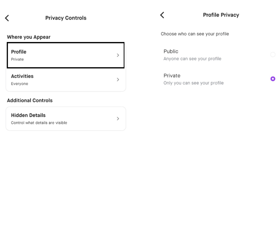
Profile privacy controls who can see your profile information within your tenant. You have the following options:
Public Profile
All members of your tenant can view your full profile, including your name, avatar, bio, and stats. Best for athletes who want to be visible and encourage team engagement.
Limited Profile
Only your name and avatar are visible to other members. Your detailed stats, bio, and other personal information remain hidden.
Private Profile
Your profile is hidden from other members. Only tenant admins and coaches can see your basic information. Your name may still appear in challenge leaderboards.
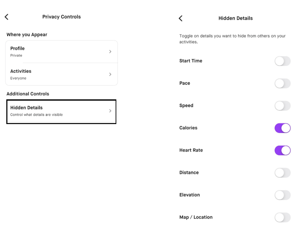
- •Tap on Profile Privacy
- •Select your preferred privacy level
- •A checkmark will appear next to the selected option
Expected result: Your profile privacy level is updated and the checkmark confirms your selection.
Set Activity Privacy
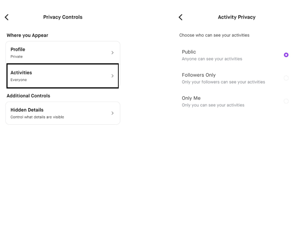
Activity privacy controls who can see your workout data, activity history, and fitness metrics. This is separate from your profile privacy.
Visible Activities
All your activities (workouts, steps, heart rate data, etc.) are visible to tenant members. Activity details like duration, calories, and distance are shown.
Summary Only
Only activity summaries are visible (e.g., "Completed a workout"). Detailed metrics like duration, calories, heart rate, and distance are hidden from others.
Hidden Activities
Your activities are completely hidden from other members. Only you and tenant admins can see your activity data. Challenge contributions may still be counted.
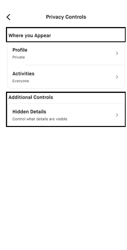
- •Tap on Activity Privacy
- •Choose how much of your activity data others can see
- •Your selection takes effect immediately
Expected result: Your activity privacy is updated. Other members will see your activities according to the level you selected.
Manage Hidden Details
Hidden details give you fine-grained control over specific pieces of personal information, regardless of your overall profile privacy level.
You can individually hide or show:
- •Email address - Hide your email from other members
- •Date of birth - Hide your age and birthday
- •Weight - Hide your weight from your profile
- •Height - Hide your height from your profile
- •Gender - Hide your gender from your profile
- •Location - Hide your location information
- •Tap on Hidden Details
- •Toggle each field on or off using the switches
- •When a toggle is on, that detail is hidden from other members
Expected result: Individual profile details are hidden or shown based on your toggle selections.
Understanding Privacy Combinations
Profile privacy, activity privacy, and hidden details work together. Here's how different combinations affect what others see:
Public Profile + Visible Activities
Maximum visibility. Others can see your full profile and all activity details. Hidden details toggles still apply - you can have a public profile but hide your email or weight.
Public Profile + Hidden Activities
Others can see your profile information but not your workout data. Useful if you want to be socially visible but keep fitness metrics private.
Limited Profile + Summary Only Activities
A balanced approach. Others see your name and avatar, plus general activity completion notices without detailed metrics.
Private Profile + Hidden Activities
Maximum privacy. Your profile and activities are hidden from other members. Only admins and coaches can see your information. You can still participate in challenges.
Important: Hidden details toggles override profile privacy. Even with a public profile, toggled-off fields remain hidden.
Save and Verify Your Settings
- •Most privacy settings save automatically when you make a selection
- •Look for a confirmation message or checkmark to verify the change was saved
- •To verify your settings, navigate back to Privacy Settings and confirm your selections are still active
- •You can change your privacy settings at any time

Expected result: All your privacy settings are saved and active. Your profile will reflect the changes immediately.
Troubleshooting
Privacy settings are not saving
- Check your internet connection
- Update the app to the latest version
- Close and reopen the app, then try again
- Contact support if the issue persists
Others can still see my hidden information
- Verify the correct toggles are enabled in Hidden Details
- Note that tenant admins and coaches may still have access to your data
- Changes may take a few minutes to propagate across all devices
- Ask the other member to refresh their app to see updated privacy
My name still appears on challenge leaderboards
- Challenge participation may display your name even with a private profile
- To hide from leaderboards, you may need to leave the challenge
- Contact your tenant admin about anonymous leaderboard options
Can't find the privacy settings menu
- Make sure you're on the Profile tab, not the Home or Activities tab
- Tap the gear icon in the top-right corner of your profile
- Scroll down in settings - privacy options may be below other settings
- Update the app if you don't see privacy settings
Privacy Best Practices
Keep Your Data Safe:
- 1Review regularly - Check your privacy settings periodically to ensure they match your preferences
- 2Start private - If unsure, start with a more restrictive setting and open up later
- 3Use hidden details - Even with a public profile, hide sensitive fields like email and date of birth
Quick Reference
| Step | Action | Time |
|---|---|---|
| 1 | Open profile settings | 10 seconds |
| 2 | Navigate to privacy settings | 10 seconds |
| 3 | Configure profile privacy | 1 minute |
| 4 | Set activity privacy | 1 minute |
| 5 | Manage hidden details | 1 minute |
| 6 | Review privacy combinations | 2 minutes |
| 7 | Save your settings | 10 seconds |
| Total | Configure all privacy settings | ~5-7 minutes |
Pro Tips
Make the Most of Privacy Settings:
- 1Mix and match - Use a public profile with hidden activities if you want to be social without sharing fitness data
- 2Use Summary Only - The middle ground lets teammates know you're active without exposing detailed metrics
- 3Hide selectively - You don't have to go fully private. Use hidden details to hide just your weight or email while keeping everything else visible
- 4Challenge awareness - Remember that challenge participation may still show your name on leaderboards regardless of your privacy settings
- 5Admin visibility - Tenant admins and coaches always have access to member data for organizational purposes
- 6Check periodically - App updates may introduce new privacy options. Review your settings after each update
Need More Help?
If you encounter any issues not covered in this guide:
- •FAQ Section: Check the help center for common questions
- •Video Tutorials: Visit our YouTube channel for visual guides
- •Contact Support: Reach out to our support team at support@thefitcorp.com
Your Privacy, Your Control!
You've configured your privacy settings. Feel confident knowing that your data is shared only on your terms.